How to Fix Xiaomi TV Black Screen Issue: 2026 Master Guide
Originally published by Barista | Updated & Fact-Checked by the Arenaoftech Editorial Team on March 5, 2026
Considering how annoying my past week has been, if there’s anything or anyone I’d like to thank for this, then it would definitely be the Mi startup sound, seeing the status light blink, but being stared back at by a pitch-black screen. It even gets worse, especially when you are on paid leave, and your Mi TV suddenly gets an attitude.
The 2026 Master Guide: Fixing the Xiaomi Mi TV black screen issue in 5 minutes.
I’d prefer getting myself a brand new TV instead of calling a technician every time, but that too is not that easy, especially in this economy!
Anyways, I somehow managed to fix my TV after I discovered the Secret Menu combinations and hardware tests that are easy to do and are mostly done by professionals.
- 10-Second Diagnostic (just to be sure if it is a hardware or software problem)
- How to Force Recovery Mode
- Expert hardware tips
- When to call a Technician?
10-Second Diagnostic (just to be sure if it is a hardware or software problem)
First, we need to figure out if the screen is actually dead or just sleeping.
-
Turn on the TV and wait for 2 minutes.
-
Now press the volume buttons. If you can hear an annoying ding or UI clicks sound, then congratulations, your motherboard is safe, but your picture (Backlight/T-CON) is failing.
For the second test, you will need a flashlight, even your phone’s flashlight will do, just make sure it is bright enough.
-
Now turn on the flashlight and point it at the TV screen from approx 2-inch distance.
-
If you see faint shadows of the Mi Logo or Menu, then your Backlight LED strips are burnt out. This is a hardware issue. But, if it’s pure black with no shadows, then it’s likely a Software/Firmware hang or a T-CON board issue.
Here’s a master reset table for every Xiaomi Model out there. Make sure to check it out and try the recommended fix for your TV. Xiaomi has changed its remote technology three times in the last 5 years. You must use the correct combination for your specific remote.
*Note: If you own an Older Mi TV (IR version), you must point the remote directly at the bottom of the TV, whereas for the Bluetooth ones, you just need to be nearby.

Comprehensive Reset Database: Find the specific secret code for your Xiaomi TV model year.
After confirming why your screen is black, if it is due to a software update (which is very common with Xiaomi TVs), then just follow the steps below to force recovery mode.
How to Force Recovery Mode
-
Try Cold Boot: Pull the power plug from the wall. Don’t just turn it off with the remote; wait for 60 seconds.
-
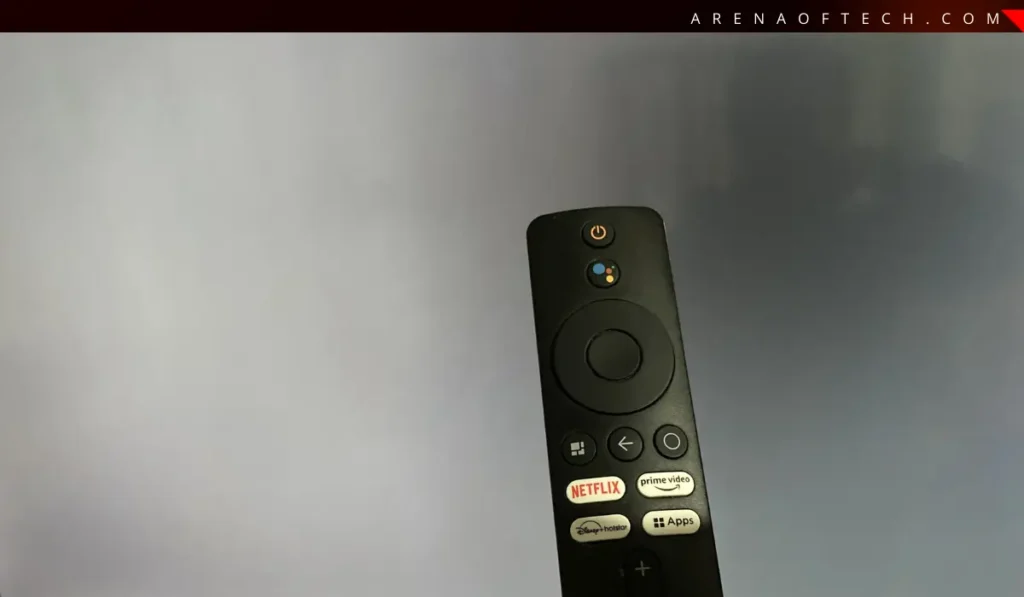
Master Reset: On your remote, press and hold the buttons listed in the table above simultaneously. (Make sure to check your variant from the table before proceeding)
-
The Power Up: While you hold the remote buttons, have someone else plug the TV back into the power outlet.
-
Wait for the Logo: Keep holding until the “Mi” or “Google TV” logo appears.
-
Once you get to the recovery Menu, you will see a blue/black menu. Use the remote to select “Wipe Data/Factory Reset.”
* Note: This will delete your apps, but it will save your TV. Don’t worry, your Google Account will remember your apps; you’ll just need to sign back in.
If the software fixes failed and your screen is still the same, then check out our arenaoftech’s expert hardware tips below.
Expert hardware tips
Static Discharge: When your TV is on and running for a long period of time, the capacitors on the motherboard hold a static charge that prevents the screen from lighting up. To fix this, unplug the TV and hold the physical power button (usually located under the Mi logo at the bottom) for at least 30 seconds, then immediately plug it back in and check.
HDMI cables: If you happen to use a set-top box or PlayStation, then a handshake error can often cause a black screen. To fix this, unplug all HDMI cables and plug them back in one by one.
T-CON Board: If you notice your blackscreen is flickering and there are visible vertical lines, then it means your T-CON board (which controls the pixels) might be loose. To confirm this Gently (and I mean very gently) tap the back of the TV near the bottom-center. If you notice the picture flickering, you have a loose ribbon cable.
When to call a Technician?
After you conduct the flashlight test, which I’ve mentioned above, and see shadows, but the software reset didn’t bring the brightness back, then your LED backlight strips need immediate replacement.
At Arenaoftech, we always recommend checking your warranty first, as Xiaomi typically offers 1-2 years on the panel.
Now that my TV is finally back to work, I can get back to my leave in peace. Hope this saved your holiday, too!
Did this fix your Mi TV? Let us know which model you have in the comments! If you’re still stuck, tell us your model number, and we’ll find the specific code for you.

Baristha
Baristha holds a degree in IT and brings a deep academic background to the team. Former Assistant Professor focused on delivering verified technical solutions.